Thursday, 9 February 2012

Video - Create and Configure a vSphere Replication Manager (VRMS) Database


vSphere Replication is a replication engine that is part of SRM 5.0 and requires ESXi 5.0 and later, giving an alternative means of protecting and replicating virtual machines between sites. It is entirely managed within the SRM interface after initial deployment and configuration, and integrates with storage array–based replication to provide full coverage of the virtual environment.

The assumption is that there are multiple databases for vSphere Replication already configured for use, one at each site. In this evaluation guide, we will be using Microsoft SQL Server 2008 Express as a database, and using native SQL authentication for access. Workflow covered will be as follows:

1. Deploy vSphere Replication Management Servers (VRMS).
2. Configure VRMS.

When creating a database only use capitols even the username and the password need to be in capitols :-) Also use the fully qualified domain name as a database server, don't use IP-addresses. For configuring vCenter information, scroll down and notice the vCenter configuration information that is necessary. It is very important that the vCenter Server Address field is correctly populated. If you have used IP addresses for all site pairing activities, continue to use IP addresses in this location. If your SRM sites were paired with host names or fully qualified domain names, it is important that you do the same at this location as you did when pairing the sites. VRMS requires naming consistency throughout the process in order to function correctly. Enter the vCenter Server Address for the site you are currently using, which should be the protected site (Site A) vCenter. Click on Generate and Install an SSL Certificate after all the information is filled out.

When all the information is correctly filled in and the SSL Certificate is generated, click on the Save and Restart Service button. This will register the VRMS with vCenter and connect to the supplied database to run the initial configuration of vSphere Replication.

If VRMS has been successful communicating with vCenter and the database, it will return to the Configuration screen with a green message labeled Successfully saved the startup configuration. This may take a few minutes to return. Wait until a message is generated, whether it is the green success message or an error. If an error message is generated, re-examine both the database and vCenter information carefully and try again.

More information can be found in the VMware vSphere Site Recovery Manager 5 Evaluation Guide


Monday, 6 February 2012

Technical Whitepaper - VMware vSphere VMFS-5 Upgrade Considerations

VMware vSphere 5.0 introduced a new version of the flagship vSphere Virtual Machine File System (VMFS) known as VMFS-5. VMFS-5 offers a variety of new features, including:

• Larger single extent volume (64TB)
• Larger Virtual Machine Disks (VMDKs): 2TB – 512 bytes with a new unified 1MB block size
• More and smaller sub-blocks (8KB) to reduce the amount of stranded/unused space
• Improvements in performance and scalability via the implementation of the vSphere vStorage API for Array Integration (VAAI) primitive ATS (Atomic Test & Set) across all datastore operations.

vSphere 5.0 supports both VMFS versions 3 and 5. Therefore, it is not necessary to upgrade your VMFS volumes. However, customers can move to VMFS-5 to benefit from these features. A complete set of VMFS-5 enhancements can be found in the What's New in vSphere 5.0 Storage white paper.

http://www.vmware.com/files/pdf/techpaper/VMFS-5_Upgrade_Considerations.pdf

Networking Blog site changes and VDS best practices paper available for download

Recently, there were some changes made to VMware blog site. 

In that process we have moved the networking blog from its old site blogs.vmware.com/networking to the new site blogs.vmware.com/vsphere/networking.

From now on all new posts will be posted on this new site blogs.vmware.com/vsphere/networking.

I think the content of the old site will remain there. I will try and see if I can have the old blog posts moved to the new site.

So please update your bookmarks.

Also, I wanted to let you know that the VDS best practices paper is now available to download here.


The vCloud Director Appliance

Stephens-pic-small


by Tom Stephens, Senior Technical Marketing Architect, VMware

Evaluating software to make sure that it is fit for purpose in your environment can be a time consuming task.  One has to acquire the hardware, get the software, and configure the environment.  Only then can they get to the business of performing the evaluation.  Of course, virtualization helps here.  Just a quick look at the VMware Virtual Appliance Marketplace and you'll see hundreds of pre-packaged solutions ready for you to download and play with.

Of course, VMware provides virtual appliances of its software as well.  By going to VMware.com, you can download virtual appliances for vCenter Server, vCenter Orchestrator, and even vCloud Director! 

By using the vCloud Director Appliance, you can have a fully functional vCD environment ready in minutes.  In the current version, the vCD Appliance even contains an embedded Oracle 11g R2 Express Edition (XE) database that eliminates the need to configure an external database.

Now the vCloud Director Appliance does have some limitations.  As it's only intended for use with evaluations of vCloud Director, the scale of the deployment is limited to:

  • One vCloud Director cell
  • Two vCenter Servers
  • 10 organization vDCs
  • 100 virtual machines
  • Up to 11GB of information stored in the embedded database

As you can see, these limitations are generous enough to let you build out quite a large environment for your evaluation.

After you sign in to evaluate vCloud Director, you will be presented with the option to download the vCloud Director Appliance as an .ova file.  This .ova file can then be deployed through an existing vSphere environment as normal.  Once done, you'll see you have a CentOS 5.6 based VM that serves as the vCloud Director Appliance. 

Complete step-by-step instructions for configuring the vCloud Director Appliance can be found in the vCloud Director 1.5 Evaluation Guide.

The appliance is intended to be a plug-and-play solution for evaluation environments.  Due to this, there shouldn't be any maintenance required on your part.  However, if you need to, here is the login information for the vCloud Director Appliance:

Username = root

Password = Default0

Additionally, the account information to access the embedded Oracle XE database is:

Username = vcloud

Password = VCloud

The vCloud Director Appliance is a fairly recent release, having just been released in Nov 2011.  As such, there are not too many known issues.  In fact, off the top of my head, I can only name one:

  1. Ability to use the vCloud Director Appliance with VMware vCenter Chargeback Manager.  Currently, there are some issues trying to integrate Chargeback with a instance of the vCloud Director Appliance.  VMware is aware of this and we are testing a fix to the issue now.  Expect to see a KB article out soon on this.

 Performing an evaluation of vCloud Director using the appliance is certainly something you should consider.  It will no doubt save you a lot of time!


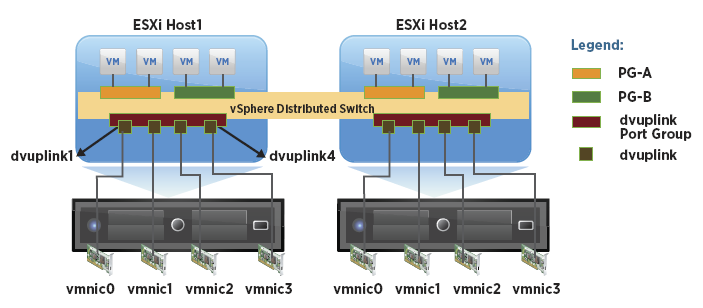
Technical Whitepaper - VMware vSphere Distributed Switch Best Practices

This paper provides best practice guidelines for deploying the VMware vSphere® distributed switch (VDS) in a vSphere environment. The advanced capabilities of VDS provide network administrators with more control of and visibility into their virtual network infrastructure. This document covers the di!erent considerations that vSphere and network administrators must take into account when designing the network with VDS. It also discusses some standard best practices for configuring VDS features.

The paper describes two example deployments, one using rack servers and the other using blade servers. For each of these deployments, di!erent VDS design approaches are explained. The deployments and design approaches described in this document are meant to provide guidance as to what physical and virtual switch parameters, options and features should be considered during the design of a virtual network infrastructure. It is important to note that customers are not limited to the design options described in this paper. The flexibility of the vSphere platform allows for multiple variations in the design options that can fulfill an individual customer's unique network infrastructure needs.

This document is intended for vSphere and network administrators interested in understanding and deploying VDS in a virtual datacenter environment. With the release of vSphere 5, there are new features as well as enhancements to the existing features in VDS. To learn more about these new features and enhancements, refer to the What's New in Networking paper.

http://www.vmware.com/resources/techresources/10250

Saturday, 4 February 2012

Technical Marketing Update 2012 - Week 05

By Duncan Epping, Principal Architect, VMware.

As promised last week an update that includes new white papers. First one is by Venky Deshpande and is about VDS best practices, highly recommend read. The second paper is by VMware's storage guru Cormac Hogan. Anything that Cormac writes is worth reading in my opinion. There's more papers in the pipeline so keep checking these updates.

White paper:

Blog posts:


Technical Papers - SAP and VMware

VMware has released several technical white papers and reports regarding hosting a SAP enviroment on vSphere.


This paper describes how SAP NetWeaver running in a Linux environment on VMware vSphere 4 can be protected. It provides good details on the key capabilities of SUSE Linux and VMware vSphere as it pertains to protecting a Tier 1 business critical application.


This report shows the results of the SAP Sales and Distribution (SD) Standard Application Benchmark on a Fujitsu Primergy RX300 S6 system, running VMware vSphere 5.0


Virtualizing Tier-1 applications such as SAP allow end users to reap the benefits of virutalization such as improved server utilization, reduced maintenance costs, easier administration, higher levels of business continuity and faster response time to changing business needs. Read this paper to understand how to virtualize SAP on IBM System x3850 X5 servers


This report provides the results of performance and scalability of the HP ProLiant DL980 server running SAP on VMware vSphere 5. The tests were done by ESG labs, which confirmed that vSphere 5 was able to effectively virtualize a CPU-intensive SAP workload and achieve scale as number of users grew.